
Running a Webflow site is exciting — until you realize how much time goes into the work that happens around the website. Manually copying form submissions into a CRM, notifying your team every time a lead comes in, publishing blog posts one by one — these tasks add up fast. That is exactly where webflow automation steps in.
Webflow automation means connecting your Webflow website to the tools your business already uses, so data moves automatically between them without anyone lifting a finger. A form is submitted → your CRM updates → a Slack message fires → a welcome email goes out. All of it happens while your team focuses on actual work.
Industry research consistently shows that automation helps businesses reduce repetitive tasks, improve productivity, minimize manual errors, and free teams to focus on higher-value work. By automating routine processes across marketing, sales, and operations, businesses can respond faster, scale more efficiently, and deliver a better customer experience.
In this guide, you will find practical, real-world webflow automation ideas — covering CMS management, lead capture, marketing workflows, CRM syncing, and more — that any business can implement today, with or without a developer.
What Is Webflow Automation
Webflow automation is the process of triggering actions automatically based on events that happen on your Webflow site. When a visitor fills out a form, purchases a product, or a CMS item goes live, automation tools react to those events and perform tasks across your other apps in real time.
Webflow previously offered a built-in automation feature called Webflow Logic for creating workflows directly within the platform. As part of its ecosystem-first approach, Webflow sunset Logic on June 27, 2025, and now recommends external automation platforms — primarily Zapier and Make — to build and manage automation workflows. This shift makes learning these tools more important than ever for businesses using Webflow.
The good news: the automation ecosystem around Webflow has matured significantly. Whether you are a SaaS startup, an agency, or an ecommerce brand, there are ready-to-use automation workflows that can save your team hours every week.
Benefits of Webflow Automation
Before looking at tools and specific workflows, it helps to understand what businesses actually gain from setting up webflow automation properly:
Saves manual work — Repetitive tasks like copying form data, updating spreadsheets, or notifying teammates run automatically in the background.
Reduces human errors — Automated data transfer eliminates the typos, missed entries, and duplicate records that come from manual work.
Faster lead response times — Leads that enter a CRM and trigger an email sequence within seconds of submitting a form convert significantly better than ones that wait hours for manual follow-up.
Improves customer experience — Instant confirmations, personalized follow-ups, and timely notifications make every interaction feel faster and more professional.
Scales operations without hiring — A small team with the right automation stack can handle the volume that would otherwise require additional headcount.
Best Webflow Automation Tools for Businesses
Before diving into specific automation ideas, it helps to understand the three main platforms used for webflow automation workflows:
Zapier — The most widely used no-code automation platform. With over 8,000 app integrations, Zapier connects Webflow forms, CMS collections, and ecommerce events to tools like HubSpot, Mailchimp, Slack, Google Sheets, and Salesforce. With its native integration setup, businesses can connect workflows smoothly and manage automated tasks directly to optimize their digital marketing and lead routing packages.
Make (formerly Integromat) — A more visual automation builder with a flowchart-style interface. Make supports complex multi-branch workflows, conditional logic, and data transformation. It is especially useful when you need automation that adapts based on what kind of lead or content is coming in.
Webflow CMS API — Webflow’s built-in REST API allows developers to read, create, update, and delete CMS collection items programmatically. When combined with platforms like Make or custom scripts, the webflow cms api makes it possible to automate content publishing, content syncing, and dynamic data management at scale.
All three approaches work best when paired with webflow webhook integration, which allows real-time triggers meaning your automation runs the instant something happens on your site, not minutes later.
Here is a quick comparison to help you choose the right tool for your use case:
| Tool | Best For | Difficulty |
| Zapier | Beginners and simple no-code workflows | Easy |
| Make | Complex multi-step conditional workflows | Medium |
| Webflow CMS API | Custom automation and large-scale data syncing | Advanced |
| Webflow Webhooks | Real-time event-based triggers | Medium |
If you are still in the process of building or migrating your site, it is worth setting up professional Webflow development with automation in mind from the start — the way your forms, CMS collections, and page structure are built directly affects how smoothly automation runs later.
How to Automate Webflow Workflows Step by Step
Setting up a webflow automation workflow is easier than most businesses expect. Whether you want to automate lead capture, CMS updates, ecommerce orders, or team notifications, the process follows the same framework.
Step 1 — Choose a Trigger Identify the event that should launch your automation. Common triggers include Webflow form submissions, CMS item updates, ecommerce orders, and webhook events.
Step 2 — Select the Right Automation Tool Choose the platform that fits your requirements. Zapier is ideal for simple no code webflow automation, while Make supports advanced scenarios with conditional logic and multi-step actions. For custom integrations and large-scale data syncing, developers can use the Webflow CMS API directly.
Step 3 — Map Your Data Fields Connect Webflow fields to the corresponding properties in your CRM, email marketing platform, project management tool, or database. Proper field mapping ensures accurate data transfer across your automation stack.
Step 4 — Test the Workflow Before activating your automation, run multiple test submissions to confirm that every action works correctly. Verify that contacts are created, notifications are delivered, and CMS content is updated as expected.
Step 5 — Monitor and Optimize Enable error notifications in Zapier or Make to catch failed automations quickly. Review workflow performance regularly and optimize your setup as your business processes evolve.
10 Webflow Automation Ideas That Actually Save Time
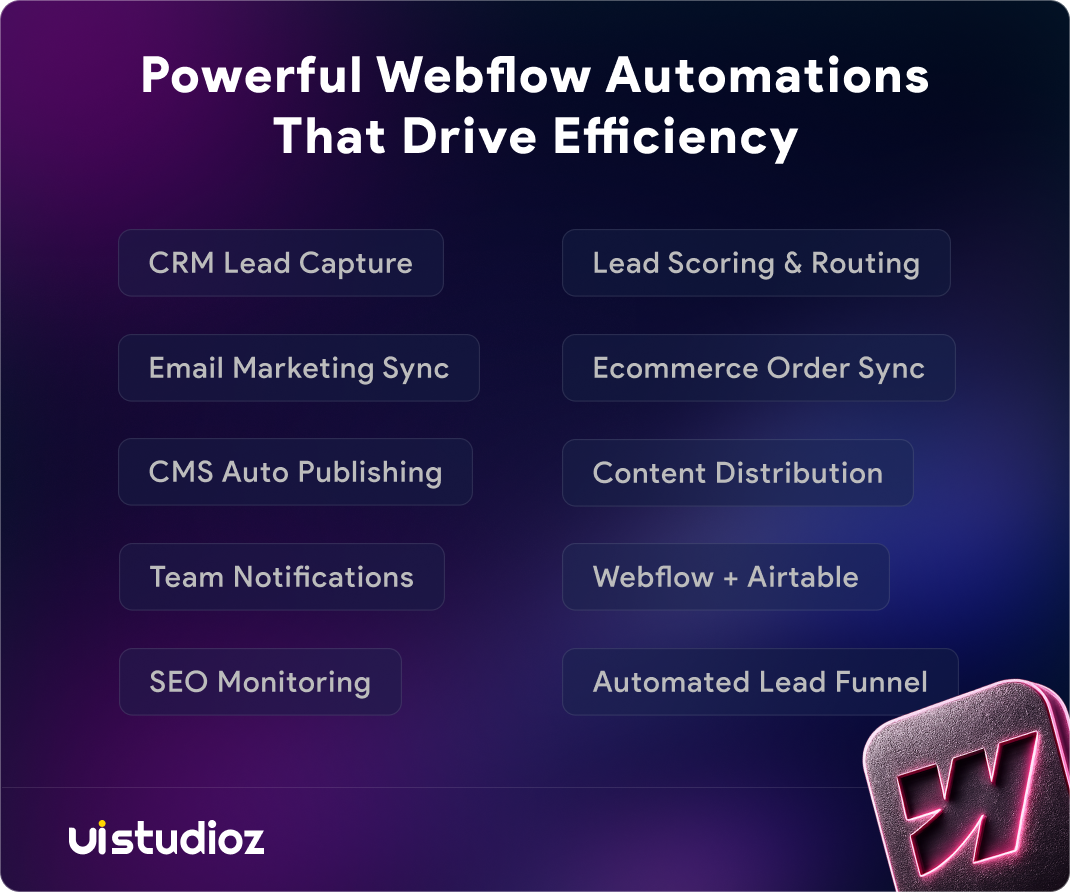
1. Automate Lead Capture to Your CRM
This is the most impactful automation any business can set up on day one. Every time someone fills out a contact form or a demo request on your Webflow site, their details should automatically appear in your CRM — no copy-pasting, no delays.
With a webflow zapier integration, you can route form submissions directly to HubSpot, Salesforce, Pipedrive, or Zoho CRM the moment they come in. Tags can be applied based on which form was submitted, so your sales team immediately knows whether a lead came from the homepage, the pricing page, or a campaign landing page.
For teams using HubSpot specifically, the webflow crm integration can also enrich the contact record with the form source URL, the visitor’s country (using IP lookup), and a timestamp — giving your sales team context before they even make the first call.
How to connect Webflow with HubSpot and automate leads: Use the Webflow trigger in Zapier (“Form Submission”), add an action step to create or update a HubSpot contact, and map each form field to the right CRM property. You can add a second action to notify your sales team on Slack, all in the same Zap.
This is one of the most common webflow automation examples for agencies managing multiple client sites with active lead generation. If your site is not yet capturing leads effectively at the form level, our Webflow CRO services can help fix conversion bottlenecks before you build automation on top.
2. Automate Form Submissions to Email Marketing Tools
When a visitor subscribes to your newsletter, downloads a resource, or registers for a webinar through your Webflow form, that contact should immediately enter an email sequence — not sit in a spreadsheet until someone manually imports them.
Using webflow form automation with Zapier or Make, you can connect Webflow form submissions to Mailchimp, ConvertKit, ActiveCampaign, or any other email marketing platform. The automation can add the contact to the right audience list, tag them based on which form they submitted, and trigger a welcome sequence immediately.
This is the core of webflow marketing automation for content-driven businesses. Instead of batching imports once a week, your email list grows in real time with zero manual effort.
3. Automate CMS Content Publishing from External Sources
Managing content at scale is one of the most time-consuming tasks for any marketing team. If your Webflow blog or resource library is updated regularly, manually entering new CMS items is not sustainable.
With webflow dynamic content automation, you can use Make or Zapier to auto-publish blog posts from Airtable or Notion to Webflow CMS, sync product listings from a spreadsheet to a Webflow collection, and pull data from an external database to create CMS items on a schedule.
The automate webflow cms workflow means your content team works in a familiar tool — Notion, Airtable, or Google Sheets — and Webflow stays updated automatically. This is especially powerful for agencies managing content-heavy client sites where manual CMS entry would otherwise consume hours each week.
To get the most out of content automation, your CMS collections need to be set up cleanly. Our Webflow design services include structured CMS architecture so your content schema works seamlessly with automation tools from day one.
4. Set Up Real-Time Team Notifications
When a lead fills out a form or a new order comes in, your team should know about it immediately — not when they check email three hours later.
The webflow automation workflow for team notifications is simple to set up with Zapier. A Webflow form submission triggers a Slack message that includes the lead’s name, email, company, and the page they submitted from. The right team member gets tagged automatically based on what the lead is asking about.
This automation removes the communication lag that often loses leads in the first critical hour after submission — the window when response rates are consistently highest.
5. Automate Lead Scoring and Routing
Not all leads are created equal. A contact requesting enterprise pricing needs a different response than someone downloading a free resource.
Using no code webflow automation with Zapier’s built-in filters, you can route high-value leads directly to a sales calendar link (Calendly auto-invite), tag lower-intent leads for a nurture email sequence, and assign leads to different team members based on company size, industry, or location.
This is one of the most valuable webflow automation for saas use cases, where different pricing tiers attract very different buyer profiles and manual routing causes deals to fall through the cracks. If you are building a SaaS product on Webflow, see how our Webflow for SaaS service is structured to support automation-heavy growth stacks from the ground up.
Need help setting up advanced Webflow automations? Our team at Uistudioz builds automation-ready Webflow websites that connect seamlessly with CRM, marketing, and business tools. Let’s talk about what the right automation stack looks like for your business.
6. Sync Webflow Ecommerce Orders with Fulfillment and Accounting Tools
For businesses using Webflow Ecommerce, every new order creates a series of tasks: updating inventory, notifying fulfillment, sending a confirmation email, logging the sale in accounting software. Doing these manually is both slow and error-prone.
With webflow automation tools like Zapier or Make, every order can automatically create a fulfillment task in Asana or Trello, add a row to a Google Sheet for sales tracking, send the order data to QuickBooks or Xero, and trigger a personalized confirmation email outside of Webflow’s default receipt.
This is a core save time with webflow automation use case for product-based businesses that process more than a few orders per day.
7. Automate Content Repurposing and Distribution
Publishing a new blog post on your Webflow site is just the beginning. That content needs to reach your audience on LinkedIn, get sent to your email list, and be shared with your internal team.
Using a webflow make automation scenario, you can detect when a new CMS blog post is published via webhook, automatically post a summary and link to LinkedIn, trigger an email broadcast to your newsletter list, and add the blog URL to a Google Sheet for content tracking. This turns your entire content workflow into a distribution engine.
For a full overview of the tools that make Webflow sites perform and convert at scale, see our guide on best Webflow integrations to boost performance and conversions.
8. Automate Lead Generation Using Webflow and Airtable
Airtable is one of the most popular databases for marketing teams, and it pairs naturally with Webflow for lead management. When someone submits a form on your Webflow site, the lead data can automatically populate a structured Airtable base where your team can track follow-up status, priority, and notes.
The workflow for automate lead generation using webflow and airtable typically looks like this: the visitor submits a Webflow contact form → Zapier creates a new record in Airtable with all form fields → Airtable sends an automatic email notification to the assigned account manager → the record updates with follow-up status as the sales process progresses.
This gives small teams a lightweight CRM without paying for a full sales platform, making it a strong option for webflow automation for startups watching their tooling budget. If your site needs a faster, cleaner foundation for these integrations,migrating to Webflow from an older platform removes much of the friction that makes automation harder to configure.
9. Automate SEO and Site Health Monitoring
Webflow automation is not just for lead generation and content — it can also work quietly in the background to keep your site healthy.
Using tools like Ahrefs or Screaming Frog connected through Make, you can set up automations that alert your team when a page drops in search rankings, flag broken links as they appear, notify your developer when Core Web Vitals drop below a threshold, and schedule regular site audits delivered as reports via email or Slack.
For businesses where organic traffic is a primary acquisition channel, these automations protect SEO performance without requiring someone to manually check dashboards every week. Pair monitoring automation with a solid technical foundation through our Webflow SEO services to make sure the site Google sees is already performing well.
10. Build a Fully Automated Webflow Lead Funnel
The most powerful use of webflow automation is when all of the above ideas work together as a single, connected system. Here is what a fully automated lead funnel looks like in practice:
SaaS Company Example: A SaaS company receives demo requests through a Webflow form. Each submission automatically creates a HubSpot contact, applies a “Demo Request” tag, triggers a personalized onboarding email sequence in ActiveCampaign, and alerts the sales team in Slack with the lead’s company size and source page. High-intent leads receive a Calendly invite immediately. Every lead is also logged in Airtable for follow-up tracking. The entire process runs without manual input from a single team member.
Agency Example: A digital agency manages content for five clients. Each client submits new blog content through an Airtable form. Make monitors that Airtable base and automatically creates a new CMS item in the correct Webflow collection, publishes it on a scheduled date, and notifies the client via email when the post is live. Content publishing time is reduced significantly with no manual CMS entry required.
This is what a site built for growth looks like — and it is exactly the kind of outcome we design and build through our Webflow integration services.
Webflow Automation for Agencies
For agencies managing Webflow sites for multiple clients, automation is not a nice-to-have — it is what makes your service delivery sustainable.
Webflow automation for agencies typically covers automated client reporting (pulling traffic and lead data into a Looker Studio dashboard), CMS content updates from client-provided spreadsheets without manual entry, form submission routing to each client’s preferred CRM, and onboarding automation when a new client signs a contract.
Adding automation setup to your service packages increases the value you deliver without increasing hours on-site. Clients see their website working as an operational tool, not just a brochure. If you are an agency looking to scale Webflow delivery without growing your team proportionally, our white-label Webflow development gives you a trusted partner to handle execution while you manage client relationships.
Common Webflow Automation Mistakes to Avoid
Mistake 1: Building automation without testing field mapping Before activating any Zap or Make scenario, run it with test data. A single mismatched field like sending a phone number to an email field can corrupt your CRM data silently.
Mistake 2: Over-automating before your workflows are stable If your forms, CMS structure, or integrations are still changing frequently, automate only the most stable parts first. Automations break when the things they depend on change.
Mistake 3: Not setting up error notifications Zapier and Make both allow you to receive alerts when an automation fails. Enable these from day one so a broken Zap does not go unnoticed for weeks.
Mistake 4: Using automation to mask a broken user flow If your lead form is not converting well, automating what happens after the submission does not fix the core problem. Fix the conversion issue first — then automate at scale.
Conclusion
The businesses that get the most out of Webflow are not just the ones with the best-designed sites — they are the ones where the site actively does work. Forms capture and qualify leads automatically. CMS content publishes on schedule. Teams stay notified in real time. Customers get responses instantly.
None of this requires a dedicated developer or a large tooling budget. Most of the workflows in this guide can be built in an afternoon using free or low-cost plans on Zapier or Make.
If your Webflow site is not yet set up for automation, or if you need a fully custom integration build that goes beyond off-the-shelf tools, we can help. At Uistudioz, we build Webflow sites designed for growth — combining clean, conversion-focused design with the backend integrations your business needs to run efficiently.
Ready to save time and scale smarter with webflow automation? Book a free demo with us today, and let’s build an automation stack that works for your business.

How do I automate form submissions in Webflow to a CRM?
To automate form submissions in Webflow to a CRM, connect your Webflow forms to tools like HubSpot, Salesforce, Pipedrive, or Zoho CRM using Zapier or Make. Once configured, every new submission automatically creates or updates a contact record, applies tags, and triggers follow-up workflows without manual data entry.
How do I automate Webflow workflows?
You can automate Webflow workflows by using triggers such as form submissions, CMS updates, ecommerce orders, or webhook events. Automation platforms like Zapier, Make, and the Webflow API allow you to connect your website with CRM, email marketing, project management, and analytics tools.
What are the best Webflow automation workflows for SaaS startups?
Some of the best Webflow automation workflows for SaaS startups include routing demo requests to a CRM, triggering onboarding email sequences, syncing product updates to Webflow CMS, notifying sales teams in Slack, and tracking leads in Airtable.
How can I save time using Webflow automation tools?
Businesses save time using Webflow automation tools by eliminating repetitive tasks such as manual CRM updates, content publishing, lead routing, team notifications, and reporting. Even simple automations can save several hours each week and reduce the risk of human error.
Can I automate my entire Webflow website?
Yes. You can automate your Webflow website by connecting forms, CMS collections, ecommerce orders, and webhooks with external tools like Zapier, Make, HubSpot, Airtable, Slack, and Google Sheets. Most common workflows can be implemented without writing code.
Does Webflow support webhook integrations?
Yes. Webflow supports webhook integrations that send real-time data when events such as form submissions, ecommerce orders, or CMS updates occur. Webflow webhook integration enables instant automation across external tools and platforms.
Can Webflow connect with HubSpot?
Yes. Webflow connects with HubSpot through Zapier or Make. You can automatically create or update HubSpot contacts, deals, and companies from Webflow form submissions, and trigger HubSpot workflows based on website activity.