

A website that captures leads but doesn’t feed them into your CRM is only doing half its job. For companies running on Salesforce, that gap between “form submitted” and “lead visible to sales” is where deals quietly go cold. Webflow Salesforce integration closes that gap, connecting your marketing website directly to your sales pipeline so every form fill, demo request, and signup becomes a working lead the moment it happens.
This guide covers what Webflow Salesforce integration actually is, why it matters, every method available to set it up, a step-by-step build process, common failure points, and realistic costs written for SaaS companies, B2B teams, and agencies evaluating their options. At Uistudioz, this is the kind of integration work we handle regularly for growing Webflow sites, so the guidance here reflects what actually works in production, not just in theory.
What Is Webflow Salesforce Integration?
Webflow Salesforce integration is the process of connecting a Webflow-built website to Salesforce CRM so that data, primarily leads and form submissions, moves between the two systems automatically. Instead of a team member exporting form entries and typing them into Salesforce by hand, integration handles that transfer in real time or on a set schedule.
How Webflow and Salesforce Work Together
Webflow handles the front end: pages, forms, and the visitor experience. Salesforce handles what happens after a visitor converts: lead scoring, routing, follow-up automation, and pipeline tracking. A Webflow Salesforce integration is the bridge between them, using an integration tool, webhook, or direct API integration to pass form data, contact details, and behavioral signals from the website into the correct Salesforce objects.
Can Webflow Integrate with Salesforce Natively?
No. Webflow does not offer a native Salesforce connector out of the box. Webflow Forms and Webflow Logic can send data to external destinations, and Salesforce can receive it through Web-to-Lead, its REST API, or a middleware tool – but the two platforms don’t talk to each other without one of these methods in between. Anyone claiming a one-click native integration is describing a third-party app layered on top of both platforms.
Who Should Use Webflow Salesforce Integration?
This integration makes sense for any organization using Webflow as its marketing site and Salesforce as its system of record for leads and customers – most commonly B2B companies, SaaS businesses, and enterprises with defined sales processes. If your team is manually copying form submissions into Salesforce, tracking leads in a spreadsheet before entering them, or noticing gaps between website activity and CRM records, it’s a strong signal you need this connection. It’s equally relevant for agencies building on Webflow for SaaS clients who need marketing sites that plug directly into an existing revenue stack.
Why Integrate Webflow with Salesforce?
Automate Lead Capture from Webflow Forms
Every contact form, demo request, and newsletter signup on a Webflow site is a potential Salesforce lead. Automating that path means no submission sits unprocessed in an inbox or export file waiting for someone to notice it.
Eliminate Manual Data Entry
Manual entry is slow and error-prone, misspelled emails, missed fields, and duplicate records are common when someone re-types form data into Salesforce. A proper Webflow Salesforce integration removes that step entirely, reducing data entry errors at the source.
Improve Sales and Marketing Alignment
When leads land in Salesforce instantly and are tagged with the right source and campaign data, marketing and sales work from the same picture instead of arguing over whose numbers are correct. This is especially valuable on high-converting sites built with Webflow CRO services, where every optimization to the form or funnel should be measurable inside the CRM, not just on the website analytics dashboard.
Accelerate Lead Response Times
Speed matters in B2B sales – leads contacted within the first few minutes of submitting a form convert at meaningfully higher rates than leads contacted hours later. Automated sync means a lead can trigger an assignment rule and notification the second the form is submitted, not after someone checks an export sheet.
Gain Better Customer Insights
Once website behavior and form data live inside Salesforce alongside deal history, sales and marketing teams can see the full picture of a prospect – what pages they viewed, what they downloaded, and how they entered the pipeline – instead of working from a bare name and email address.
Webflow Salesforce Integration vs Other CRM Integration Methods
Webflow + Salesforce vs HubSpot
HubSpot’s native Webflow integration is simpler to set up because HubSpot owns both the CRM and much of the marketing automation layer. Salesforce integration typically requires more configuration – object mapping, authentication, and either a middleware tool or custom API work – but it gives you the depth and customization that enterprise sales processes usually demand, including custom objects, complex lead assignment rules, and tighter control over data governance.
Webflow + Salesforce vs Pipedrive
Pipedrive integrations tend to be lighter-weight, often handled through Zapier or Make with minimal setup. Salesforce, being a more complex and enterprise-oriented platform, generally needs more deliberate field mapping and testing, but rewards that effort with far more powerful automation, reporting, and multi-team routing capabilities once it’s live.
Native Webflow Forms vs CRM Integration
Native Webflow Forms only store submissions inside Webflow’s own dashboard and send an email notification – there’s no lead scoring, routing, or pipeline tracking involved. That’s fine for a low-volume contact page, but it isn’t a substitute for a real CRM integration once your site is generating a meaningful, ongoing volume of leads.
Which CRM Integration Is Right for Your Business?
The right choice depends on sales complexity, lead volume, and how deeply your team already relies on Salesforce for pipeline management. Companies with established Salesforce workflows almost always benefit from a direct, well-mapped integration rather than routing everything through a generic form tool. If you’re unsure which approach fits your setup, an audit from a team offering dedicated Webflow integration services can save weeks of trial and error.
How Webflow Salesforce Integration Works
Understanding the Data Flow
At a high level, a visitor submits a Webflow form, that submission is captured by Webflow (or intercepted before submission via Logic or a webhook), and the data is transmitted to Salesforce through Web-to-Lead, the REST API, or a middleware platform. Salesforce then creates or updates a Lead, Contact, or custom object record, which can trigger further automation like assignment rules and notification emails.
Webflow Forms and Lead Capture
Webflow Forms are the entry point for almost every integration. Fields should be named clearly and consistently, since accurate Webflow lead management downstream depends entirely on how cleanly data leaves the form. Hidden fields are often used to pass UTM parameters or page source data that wouldn’t otherwise reach Salesforce.
Salesforce REST API and Webhooks
For more control than Web-to-Lead offers, most custom builds use the Salesforce REST API, which provides programmatic, authenticated access to Salesforce records and supports far more flexible field mapping and object targeting than a static HTML form. Webhooks complement this by pushing data the moment an event occurs, rather than waiting on a scheduled sync.
Authentication and Security
Every method of connecting Webflow to Salesforce needs some form of Authentication, such as OAuth for API-based integrations, or an Org ID for basic Web-to-Lead forms. Credentials should never be hardcoded into front-end Webflow code where they’re visible in page source; API keys and tokens belong in the middleware layer or a secured backend, not in the browser.
Prerequisites Before You Start
Before building any integration, confirm you have admin access to both platforms, a clear list of which Salesforce object each form should create (Lead, Contact, or a custom object), and a field mapping plan. On the Webflow side, review how forms are configured to route through Webflow’s own Logic documentation if you plan to trigger flows or HTTP requests directly from form submissions, rather than relying solely on a third-party tool.
Best Ways to Integrate Webflow with Salesforce
Before choosing the right method, it’s worth exploring the best Webflow integrations to understand how Webflow connects with CRM, automation, analytics, and business tools. Salesforce is one of the most powerful integrations for businesses that rely on lead management and sales automation.
Method 1: Salesforce Web-to-Lead
Web-to-Lead is Salesforce’s built-in, no-cost option. It generates an HTML form that posts directly to Salesforce and creates a new Lead record. It’s the simplest method to set up, but it has real limits: no advanced validation, a 500-lead daily cap on most orgs, and only Lead object support, no Contacts, Opportunities, or custom objects.
Method 2: Zapier Integration
Zapier connects Webflow’s form submissions to Salesforce through a no-code “Zap,” watching for new submissions and pushing them into Salesforce with configurable field mapping. It’s fast to set up and doesn’t require developer involvement, though pricing scales with task volume and update speed can lag on lower-tier plans.
Method 3: Make (formerly Integromat)
Make offers a similar no-code approach with a more visual, flowchart-style builder and generally more granular control over conditional logic and multi-step scenarios than Zapier, often at a lower cost per operation. It has a steeper learning curve for complex, branching workflows.
Method 4: Custom API Integration
A custom build using the Salesforce REST API and Webflow Logic (or a lightweight backend) gives full control over data flow, validation, error handling, and object mapping including support for custom Salesforce objects that no-code tools can’t reach. This is the approach most enterprise and high-volume SaaS teams land on, and it’s typically built by a dedicated Webflow development team rather than assembled from templates.
Comparison Table: Which Integration Method Should You Choose?
| Method | Setup Effort | Cost | Best For |
| Web-to-Lead | Low | Free | Simple contact forms, low volume |
| Zapier | Low–Medium | Subscription, task-based | Fast no-code setup, small teams |
| Make | Medium | Subscription, operation-based | Complex logic on a budget |
| Custom API | Medium–High | One-time build cost | Enterprise, custom objects, scale |
Step-by-Step Guide to Connect Webflow with Salesforce
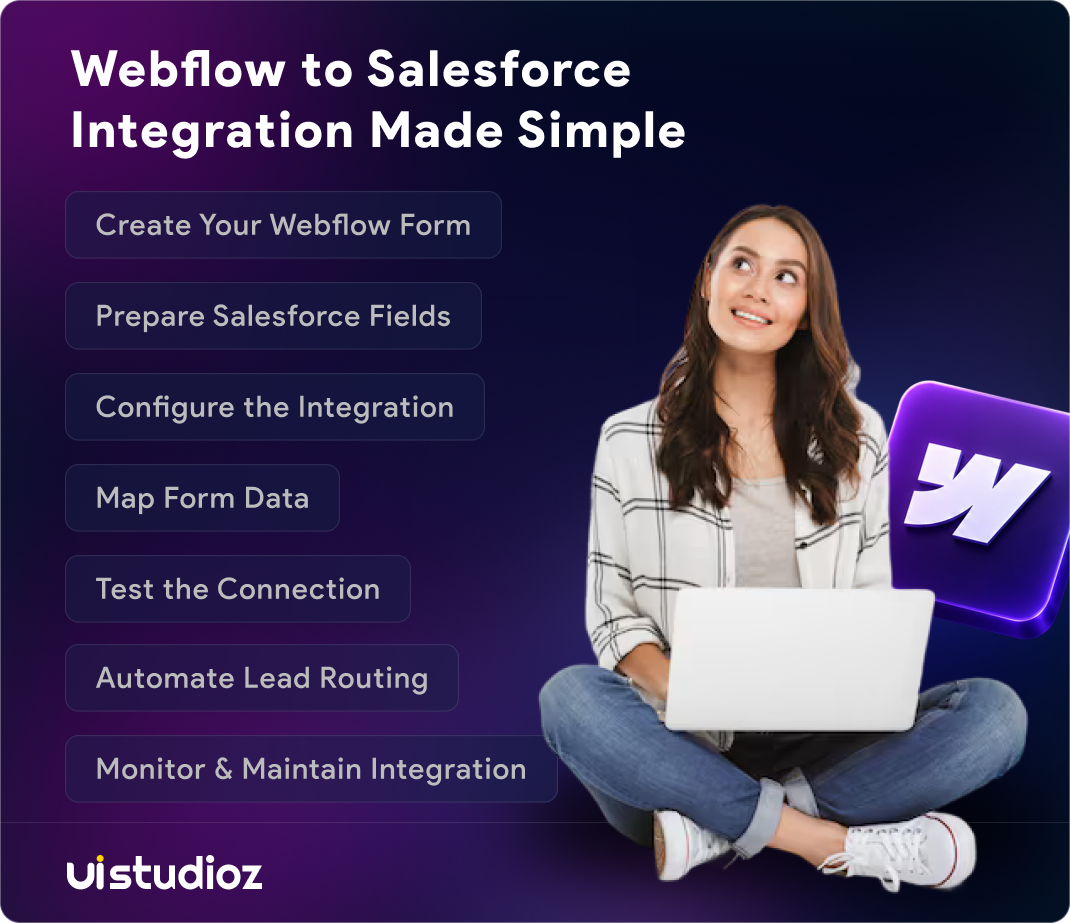
Step 1: Create or Optimize Your Webflow Form
Start with a clean form: consistent field names, only the fields you actually need, and hidden fields for source tracking if you plan to capture campaign data.
Step 2: Prepare Salesforce Objects and Fields
Decide whether submissions should create Leads, Contacts, or a custom object, and confirm the target fields exist and are named clearly before you start mapping.
Step 3: Configure Your Integration Tool or API
Set up Web-to-Lead, build your Zap or Make scenario, or configure your API call and authentication, whichever method fits your volume and complexity, as outlined above.
Step 4: Map Webflow Fields to Salesforce
Match every Webflow field to its Salesforce counterpart precisely. Mismatched field names or types are the single most common reason integrations silently fail.
Step 5: Test the Integration
Submit test entries and confirm they arrive correctly in Salesforce – right object, right fields, right owner before pointing real traffic at the form.
Step 6: Automate Lead Routing and Notifications
Once data is flowing, layers in Salesforce assignment rules and notification emails so new leads reach the right rep immediately instead of sitting in a queue.
Step 7: Monitor and Maintain the Integration
Integrations aren’t “set and forget.” API changes, form edits, and Salesforce field updates can quietly break the connection, so ongoing monitoring matters – something typically covered under Webflow maintenance services rather than left to chance.
Webflow Salesforce Integration Best Practices
Use Proper Field Mapping
Map fields deliberately and document the mapping somewhere your team can reference later – it saves hours when someone edits the form six months from now.
Capture UTM Parameters and Hidden Fields
Pass campaign source, medium, and landing page data into hidden form fields so Salesforce reporting can tie leads back to specific marketing efforts, not just “website.”
Prevent Duplicate Leads
Use Salesforce duplicate rules or matching logic in your integration tool so repeat visitors don’t generate a new Lead record every time they resubmit a form.
Secure API Credentials
Store API keys and OAuth tokens in your middleware platform or backend environment variables – never in Webflow’s front-end code or custom code embeds.
Monitor Integration Performance
Set up basic logging or alerts so a failed submission gets flagged immediately rather than discovered weeks later when someone asks why lead volume looks low.
Maintain Data Quality
Validate email formats and required fields at the form level where possible, since bad data entering Salesforce is far harder to clean up after the fact than to prevent upfront.
Common Webflow Salesforce Integration Challenges (and How to Solve Them)
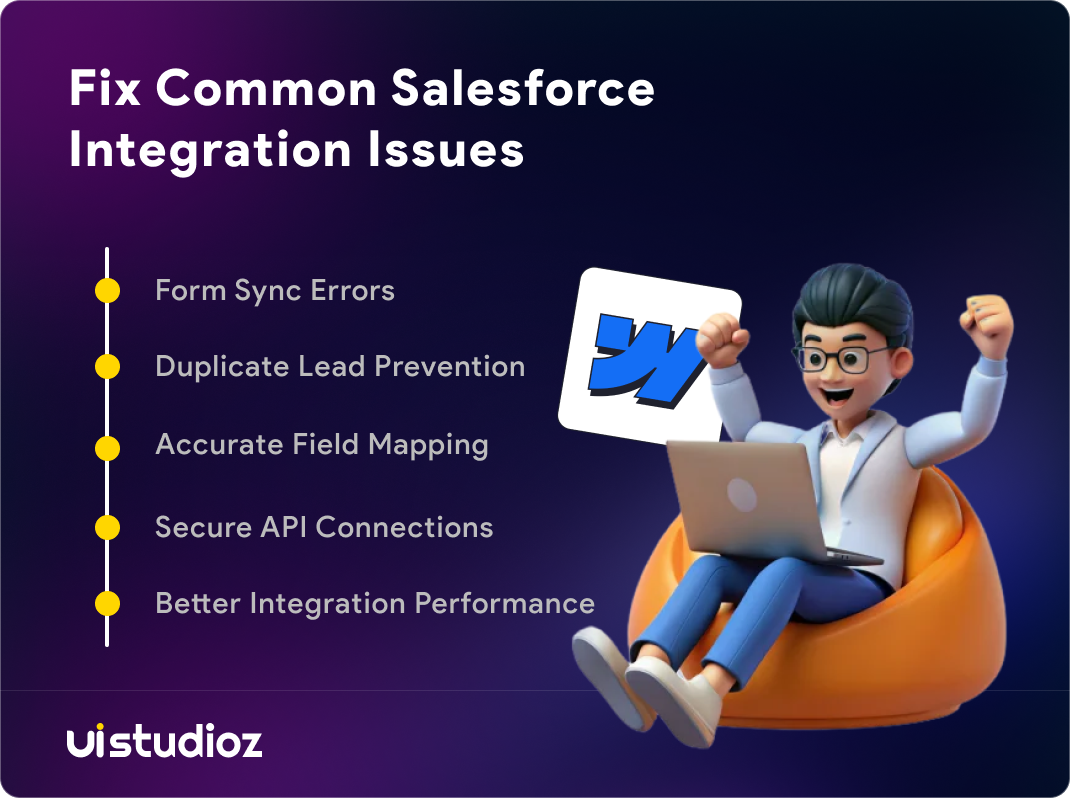
Form Submissions Not Reaching Salesforce
Usually caused by an incorrect Org ID, a broken webhook URL, or an expired API token. Start by checking the integration tool’s execution history or Salesforce’s debug logs.
Duplicate Lead Records
Typically the result of missing matching rules or a form that allows repeated submissions without deduplication logic on the Salesforce side.
Field Mapping Errors
Often caused by a Webflow field being renamed after the integration was built, without updating the corresponding mapping in Zapier, Make, or the API call.
Authentication and API Issues
Expired OAuth tokens or incorrect API scopes are the most common cause here – reauthorizing the connection usually resolves it quickly.
API Limits and Performance Bottlenecks
High-volume sites can hit Salesforce API call limits or Web-to-Lead’s daily cap. Moving to a queued or batched API approach usually solves this at scale.
Webflow Salesforce Integration Use Cases
SaaS Lead Generation
SaaS marketing sites use this integration to route demo requests and trial signups directly into Salesforce, often with lead scoring based on company size or plan interest.
B2B Sales Funnels
Multi-step B2B funnels, gated content, pricing page inquiries, contact forms – all feed into Salesforce so sales can see the full journey a lead took before reaching out.
Enterprise Marketing Websites
Larger organizations often run this integration alongside a broader platform move, particularly when migrating from a legacy CMS through dedicated Webflow migration services, since a rebuild is the natural point to fix a broken or missing CRM connection.If you’re planning a large-scale website transformation, our guide to enterprise Webflow migration explains the key steps, challenges, and best practices for moving enterprise websites to Webflow successfully.
Webinar and Event Registration
Registration forms sync attendee data into Salesforce campaigns, letting sales and marketing track attendance and follow up without exporting spreadsheets.
Contact and Demo Request Forms
The most common use case: a form submission instantly becomes a Lead, assigned to a rep, with source data attached – the core workflow this entire guide is built around.
Webflow Salesforce Integration Cost
Salesforce Web-to-Lead Cost
Free, since it’s included with Salesforce Sales Cloud or Service Cloud. The tradeoff is limited functionality rather than any direct fee.
Zapier Pricing
Zapier runs on a task-based subscription model, with free and paid tiers scaling by monthly task volume and feature access such as multi-step Zaps and premium app connections. Costs rise quickly for high-volume sites, so it’s worth estimating monthly submission volume before committing to a plan.
Make Pricing
Make uses a similar subscription structure based on “operations” rather than tasks, and generally works out cheaper than Zapier for complex, multi-step scenarios at comparable volume.
Custom API Development Cost
A custom integration is a one-time (or periodically maintained) development cost rather than an ongoing subscription, and pricing depends on the complexity of the objects, validation logic, and error handling required.
Agency Implementation Cost
Agencies typically price this work based on scope – a simple Web-to-Lead setup is a small task, while a custom API build with lead routing and testing is a larger project. Many agencies also offer this under white-label Webflow development, which is common when a partner agency needs the integration built without taking on the technical work directly.
Factors That Affect Integration Pricing
Expect cost to scale with lead volume, the number of Salesforce objects involved, how much custom logic is needed (routing, deduplication, scoring), and whether the integration needs to support Contacts and Opportunities in addition to Leads.
Why Choose Uistudioz for Webflow Salesforce Integration?
Certified Webflow Development Expertise
Our team builds and maintains production Webflow sites daily, which means integration work is grounded in how Webflow’s forms, Logic, and CMS actually behave – not just documentation.
Custom Salesforce API Integrations
Where no-code tools fall short – custom objects, complex routing, high submission volume – we build direct API integrations tailored to how your Salesforce org is actually structured.
Scalable Enterprise Solutions
Integrations are built to handle growth in lead volume and added complexity over time, rather than needing to be rebuilt the moment your sales process changes.
Secure and Future-Ready Development
Credentials, tokens, and data handling follow secure practices from day one, and integrations are documented so they’re maintainable long after the initial build.
Ongoing Support and Optimization
Integration work doesn’t end at launch. You can see examples of our broader Webflow project work orbook a call to talk through what your specific Webflow Salesforce integration would involve.
Final Thoughts on Webflow Salesforce Integration
Webflow Salesforce integration isn’t a single feature you switch on – it’s a decision about how much control, automation, and reliability your lead flow needs, and which method (Web-to-Lead, Zapier, Make, or a custom API build) actually matches that. Get the field mapping, authentication, and monitoring right once, and every future form submission does its job without anyone touching a spreadsheet. If you’d rather have a team that builds and maintains this daily handle it end-to-end, contact us at Uistudioz.

Frequently Asked Questions
Can Webflow Salesforce integration sync custom Salesforce objects?
Yes. Custom API integrations can sync Webflow form data with custom Salesforce objects. While no-code tools like Zapier and Make support many use cases, complex object mapping and advanced workflows often require a custom API integration.
How do I prevent duplicate leads in Salesforce from Webflow forms?
You can prevent duplicate leads by enabling Salesforce duplicate management rules, matching records based on email addresses, and configuring your integration tool to update existing records instead of creating new ones.
Can Webflow forms capture UTM parameters in Salesforce?
Yes. Hidden fields can capture UTM parameters such as source, medium, campaign, and content. These values can then be mapped to Salesforce fields for accurate campaign tracking and lead attribution.
Should I use Salesforce Web-to-Lead or the REST API?
Salesforce Web-to-Lead is suitable for simple lead capture and basic forms. The REST API is a better choice for advanced workflows, custom objects, validation, and enterprise-level integrations that require greater flexibility.
Can Webflow Logic replace Zapier for Salesforce integration?
Webflow Logic can automate certain workflows and send webhook requests, but it does not replace Zapier or Make for every integration scenario. Businesses with complex Salesforce automation often rely on middleware tools or custom API integrations.