

By Uistudioz Team – Digital Product Design Experts
You’ve spent hours perfecting your design in Figma—every pixel, color, and interaction is exactly right. Now comes the hard part: turning that beautiful design into clean, functional HTML code.
Manually coding from scratch? That could take days. Miscommunication between designers and developers? Even longer. This is where figma to html conversion tools become game-changers.
Whether you’re a designer looking to speed up handoff, a developer tired of rebuilding layouts from screenshots, or a startup founder racing to launch your landing page—the right tools can cut your design-to-development time by 70% or more.
In this guide, you’ll discover the best figma to html tools, how they compare, and exactly how to choose the right one for your workflow. We’ll cover free plugins, automated platforms, and the step-by-step figma design to html conversion process that teams at agencies and startups actually use.
Why Convert Figma to HTML?
The gap between design and development has always been a bottleneck. Here’s why figma to code tools matter more than ever:
Faster design-to-development workflow
Instead of developers manually interpreting designs, conversion tools generate a working code foundation in minutes—not days.
Reduces manual coding effort
Why rebuild responsive grids, spacing, and typography from scratch when automation can handle the heavy lifting?
Improves collaboration between designers & developers
Tools that convert figma to html create a shared language. Designers maintain control over visual details while developers get clean starting points.
Speeds up project delivery
For agencies juggling multiple clients or startups racing to market, shaving 40-60 hours off each project makes a real difference. That’s the promise of figma workflow automation tools.
Minimizes human error
Manual pixel-pushing leads to inconsistent spacing, misaligned elements, and broken responsive behavior. Automated conversion ensures mathematical precision.
At Uistudioz, we’ve seen firsthand how the right figma to html productivity tools transform team efficiency—especially when combined with proper design systems.
Types of Figma to HTML Conversion Solutions
Not all conversion tools work the same way. Understanding the three main categories helps you pick the right approach.
Plugins Inside Figma
Direct integration means you never leave your design environment. Click a button, export code—done.
Quick exports make these ideal for simple tasks like extracting CSS values or exporting individual components.
Best for simple projects like landing pages, small marketing sites, or prototyping. Most figma to html plugin free options fall into this category.
Examples: Figma to HTML/CSS plugins available in the Figma Community.
Third-Party Tools & Platforms
These standalone platforms offer more advanced features like responsive breakpoints, component libraries, and team collaboration.
Better code output because they’re built specifically for production-grade development, not just quick exports.
Suitable for teams managing complex projects across designers, developers, and product managers.
Examples: Anima, Locofy, TeleportHQ, Builder.io
Manual vs Automated Conversion
Automated Conversion:
- Fast (minutes instead of days)
- Consistent structure
- Great for repetitive patterns
- May need cleanup
- Limited for complex interactions
Manual Conversion:
- Total control over code quality
- Optimized for performance
- Custom animations/logic
- Time-intensive
- Requires developer expertise
Reality check: Most professional teams use a hybrid approach. Figma to html automation tools generate the foundation, then developers optimize and enhance. This is the easiest way to convert figma to html while maintaining quality.
Top Figma to HTML Conversion Tools and Plugins
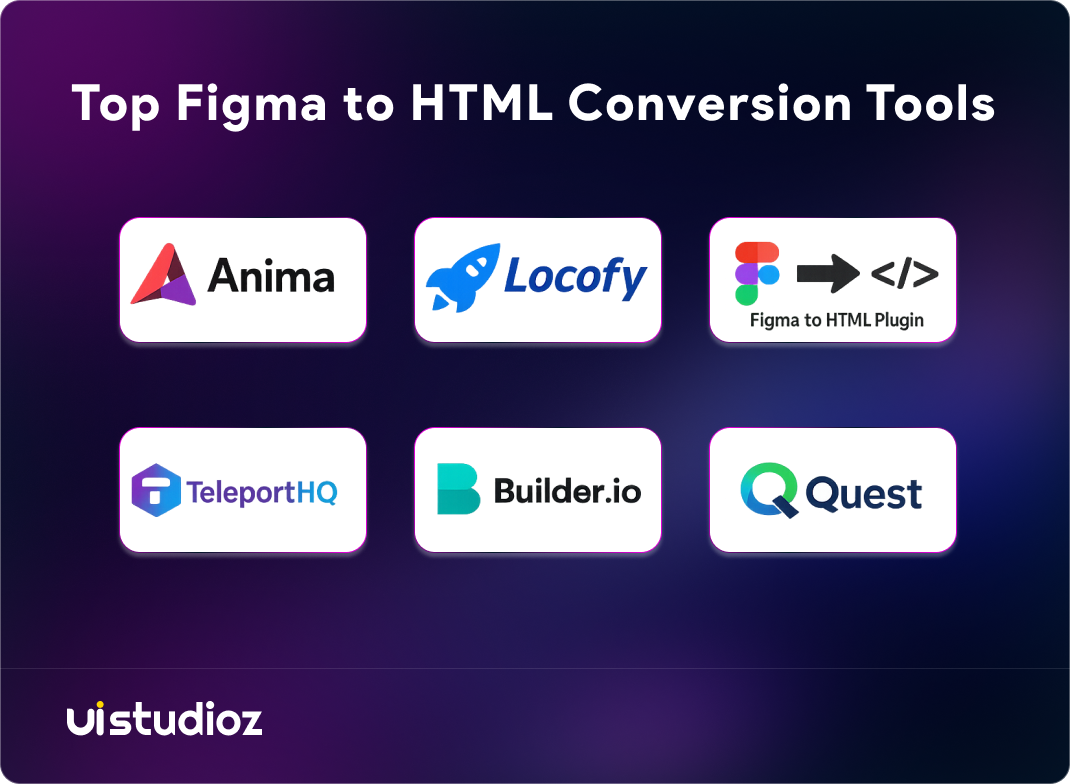
After testing over 20 solutions across real projects, here are the top figma plugins for web development that actually deliver.
1 – Anima
What it does: Anima is one of the fastest figma to html tools with the smoothest workflow integration.
Key Features:
- Exports figma to responsive html conversion with breakpoints
- Generates React, Vue, or vanilla HTML
- Built-in hosting for instant previews
- Supports figma to html with css and js
Pros:
- Excellent auto-layout detection
- Clean, semantic code output
- Strong documentation
Cons:
- Premium pricing ($31/month for full features)
- Learning curve for advanced options
Best for: Figma to html for agencies handling client projects with tight deadlines. Also great for figma to html for landing pages.
2 – Locofy
What it does: Locofy is a figma to html generator tool focused on production-ready code for web apps.
Key Features:
- Converts designs to React, Next.js, Gatsby, HTML/CSS
- Component-based architecture
- Responsive design support
- Integrates with GitHub
Pros:
- Developer-friendly output
- Supports design tokens
- Great for figma to clean html code workflows
Cons:
- Requires well-organized Figma files
- Limited free tier
Best for: Figma to html for startups building MVPs and web applications.
3 – Figma to HTML Plugin (Community)
What it does: A straightforward figma export to html plugin available free in the Figma Community.
Key Features:
- One-click HTML/CSS export
- No account required
- Basic figma to html css code generation
Pros:
- Completely free
- Simple interface
- Fast for single elements
Cons:
- Basic code quality
- No responsive support
- Limited customization
Best for: Quick prototypes, learning how to convert figma to html, or extracting CSS snippets.
4 – TeleportHQ
What it does: A visual builder and figma to html converter online platform with collaboration features.
Key Features:
- Import Figma designs directly
- Visual code editor
- Export to React, Vue, Gatsby, Next.js
- Convert figma to bootstrap html option
Pros:
- Hybrid visual/code editing
- Real-time collaboration
- Good documentation
Cons:
- Steeper learning curve
- Premium features require subscription
Best for: Teams wanting flexibility between no-code and code editing.
5 – Builder.io
What it does: An enterprise-grade platform that combines visual editing with figma to code tools.
Key Features:
- Figma import
- Visual CMS capabilities
- A/B testing built-in
- Outputs React, Vue, Angular, HTML
Pros:
- Powerful for marketing teams
- Great for figma to html for website design at scale
- Integrates with headless CMS
Cons:
- Expensive for small teams
- Overkill for simple projects
Best for: Figma to html for agencies and enterprises managing multiple brands.
6 – Quest
What it does: Converts Figma designs to React components with clean code output.
Key Features:
- AI-powered component recognition
- Exports TypeScript-ready code
- Responsive by default
Pros:
- Modern development practices
- Clean component structure
Cons:
- React-focused (limited vanilla HTML)
- Premium pricing
Best for: React developers and teams invested in component-driven development.
Figma to HTML Tools Comparison
| Tool | Ease of Use | Code Quality | Best For | Key Output | Pricing |
| Anima | High | High | Agencies, landing pages | HTML, React, Vue | Paid (Free plan available) |
| Locofy | High | Very High | Startups, web apps | React, Next.js, HTML | Paid (Limited free tier) |
| Figma to HTML Plugin | Very High | Basic | Quick exports, beginners | HTML/CSS | Free |
| TeleportHQ | High | Medium-High | Teams, visual + code workflows | HTML, React, Vue | Freemium |
| Builder.io | Medium | High | Enterprises, marketing teams | HTML, React, Angular | Paid |
| Quest | High | Very High | React developers, SaaS products | React, TypeScript | Paid |
How to Choose the Right Figma to HTML Tool
Picking from the best figma to html plugins comparison depends on your specific needs.
Based on Project Complexity
Simple landing pages: Free plugins work fine. Try the community figma to html plugin free options first.
Complex web apps: Invest in Locofy or Quest for figma to clean html code with proper component architecture.
Based on Code Quality Needs
Need production-ready code? Locofy, Quest, or Anima deliver figma to responsive html conversion worth using in real projects.
Just need a quick mockup? Basic plugins generate enough to communicate ideas.
Based on Budget
$0 budget: Figma to HTML Community plugins
Small team ($20–40/month): Anima, TeleportHQ
Enterprise ($50+/month): Builder.io, Locofy Pro
Based on Team Workflow
Designer-only teams: Choose tools with visual editors like TeleportHQ
Dev-heavy teams: Prefer code-first tools like Locofy or Quest
Cross-functional collaboration: Anima or Builder.io with shared workspaces
When we help clients at Uistudioz, we often recommend starting with a mid-tier tool for the figma to html for web development foundation, then custom-coding advanced features.
Step-by-Step: How to Convert Figma to HTML
Here’s the proven steps to convert figma to html that professional teams follow:
Step 1: Prepare Your Figma File
Clean layers and proper naming aren’t optional—they directly affect code quality.
- Name layers descriptively (e.g., “hero-section,” “nav-menu”)
- Use Auto Layout for flexible spacing
- Group related elements logically
- Delete unused layers
Pro tip: Read our guide on Best Figma Practices for Collaborative Design Teams for detailed setup instructions.
Step 2: Choose the Right Plugin/Tool
Based on the comparison above, select your figma to html automation tool.
Install the plugin or create an account with the platform.
Step 3: Export Design
Run the export process. Most tools let you choose:
- HTML/CSS vs framework (React, Vue)
- Responsive breakpoints
- Component structure
Step 4: Optimize HTML/CSS Output
This step separates good developers from great ones.
Review and clean up:
- Remove redundant classes
- Consolidate repeated styles
- Optimize images (WebP format, lazy loading)
- Add semantic HTML5 tags
- Minify CSS and JavaScript
Step 5: Test Responsiveness
Open the HTML file in browsers and test across:
- Mobile (375px, 414px)
- Tablet (768px, 1024px)
- Desktop (1440px, 1920px)
Use browser DevTools to catch layout breaks.
Step 6: Deploy
Upload to your hosting, test live links, and celebrate shipping faster than manual coding would’ve allowed.
Common Mistakes to Avoid
Even with tools to speed up figma to html conversion, these mistakes kill projects:
Relying 100% on Auto-Generated Code
Tools give you a starting point, not a finished product. Always review and optimize.
Ignoring Responsiveness
Just because Figma has mobile frames doesn’t mean the exported code will be truly responsive. Test thoroughly.
Poor Layer Organization in Figma
Garbage in, garbage out. Messy Figma files create messy code. Name layers properly before exporting.
Not Optimizing Images/Assets
Auto-exported images are often uncompressed PNGs. Convert to WebP or optimized JPEGs for faster load times.
Skipping Code Cleanup
Extra divs, inline styles, and redundant classes bloat your HTML. Spend 30 minutes cleaning up to save hours debugging later.
Best Practices for Better Figma to HTML Conversion
Follow these to get the best figma to html tools working at peak efficiency:
Use Auto-Layout in Figma
Auto-Layout translates directly to Flexbox or Grid—exactly what developers need for responsive designs.
Maintain Consistent Spacing & Grids
Use 8px or 4px spacing systems. Consistency in Figma = cleaner code output.
Use Components and Styles
Reusable components become reusable CSS classes or React components automatically.
Design with Responsiveness in Mind
Create multiple breakpoint frames (mobile, tablet, desktop) to guide figma to responsive html conversion.
Collaborate Early with Developers
Share Figma files before finalizing designs. Developer input prevents impossible-to-code layouts.
At Uistudioz, we integrate developers into design reviews from day one—it’s part of why our figma design to html conversion process runs so smoothly.
When You Should NOT Use Conversion Tools
Be honest about limitations. Which figma plugin converts to html best matters less when tools aren’t the right solution.
Complex Web Apps
Multi-step forms, dynamic dashboards, or apps with heavy state management need hand-coded architecture.
Custom Animations/Interactions
If your design has scroll-triggered animations or complex microinteractions, manual JavaScript development is essential.
High-Performance or Scalable Platforms
E-commerce sites handling thousands of products or SaaS platforms needing optimal performance require custom-optimized code from the start.
When Clean, Scalable Code is Critical
Automated tools improve yearly, but for mission-critical applications, experienced developers writing from scratch still produce superior architecture.
Bottom line: Use figma vs html conversion tools strategically. For MVPs, marketing sites, and rapid prototyping—they’re gold. For complex products, they’re a helpful starting point at best.
Conclusion: Choose Tools That Fit Your Workflow
Figma to html conversion tools are no longer experimental—they’re production-ready assets that smart teams use to ship faster without sacrificing quality.
Here’s the reality: tools speed up your workflow by 50–70%, but they’re not magic. The best figma plugins for developers still require human oversight, optimization, and sometimes custom coding.
The winning approach:
- Start with figma to html automation tools to generate your foundation
- Optimize the exported code for performance and cleanliness
- Add custom interactions and functionality manually
- Test thoroughly across devices
Choose based on your actual project needs, not hype. A $40/month tool that saves your team 20 hours per project pays for itself immediately. A free plugin that creates more debugging work than it saves? Not worth it.
Whether you’re a startup racing to launch, an agency managing multiple clients, or an in-house team optimizing workflow, the right figma to code tools transform design handoff from a bottleneck into a competitive advantage.

FAQs
Can Figma export directly to HTML?
Figma doesn’t have native HTML export built-in. You need third-party plugins or tools. The Figma Community offers several figma to html plugin free options, while platforms like Anima and Locofy provide advanced exports.
Are Figma to HTML tools reliable?
For simple to medium complexity projects, yes. Modern figma to html converter online tools produce usable code that developers can build on. However, they’re not perfect—expect to spend time optimizing output.
Do these tools generate clean code?
It depends. Premium tools like Locofy and Quest generate relatively figma to clean html code, while free plugins often produce bloated output. Always review and refactor.
What is the best free Figma to HTML plugin?
The basic “Figma to HTML” plugin in the Community is the most popular free option. For better quality on a budget, TeleportHQ’s free tier offers more features.
Is manual coding still necessary?
Yes. How to export figma to html code gets you started, but developers should review, optimize, and enhance the output. Think of tools as accelerators, not replacements.
Can I convert Figma to Bootstrap HTML?
Some tools like TeleportHQ support Bootstrap output. This is useful if you’re working within Bootstrap’s grid system and component library.
How long does Figma to HTML conversion take?
Using fastest figma to html tools like Anima? 5–10 minutes for export. Add 1–3 hours for cleanup and optimization. Compare that to 8–20 hours manual coding.
Do conversion tools support JavaScript?
Advanced tools export React/Vue components with JavaScript logic. Vanilla HTML tools typically export only structure and CSS—you’ll add interactivity manually.